Win City Login Problems: Fix 'Incorrect Password' and Account Locked Errors
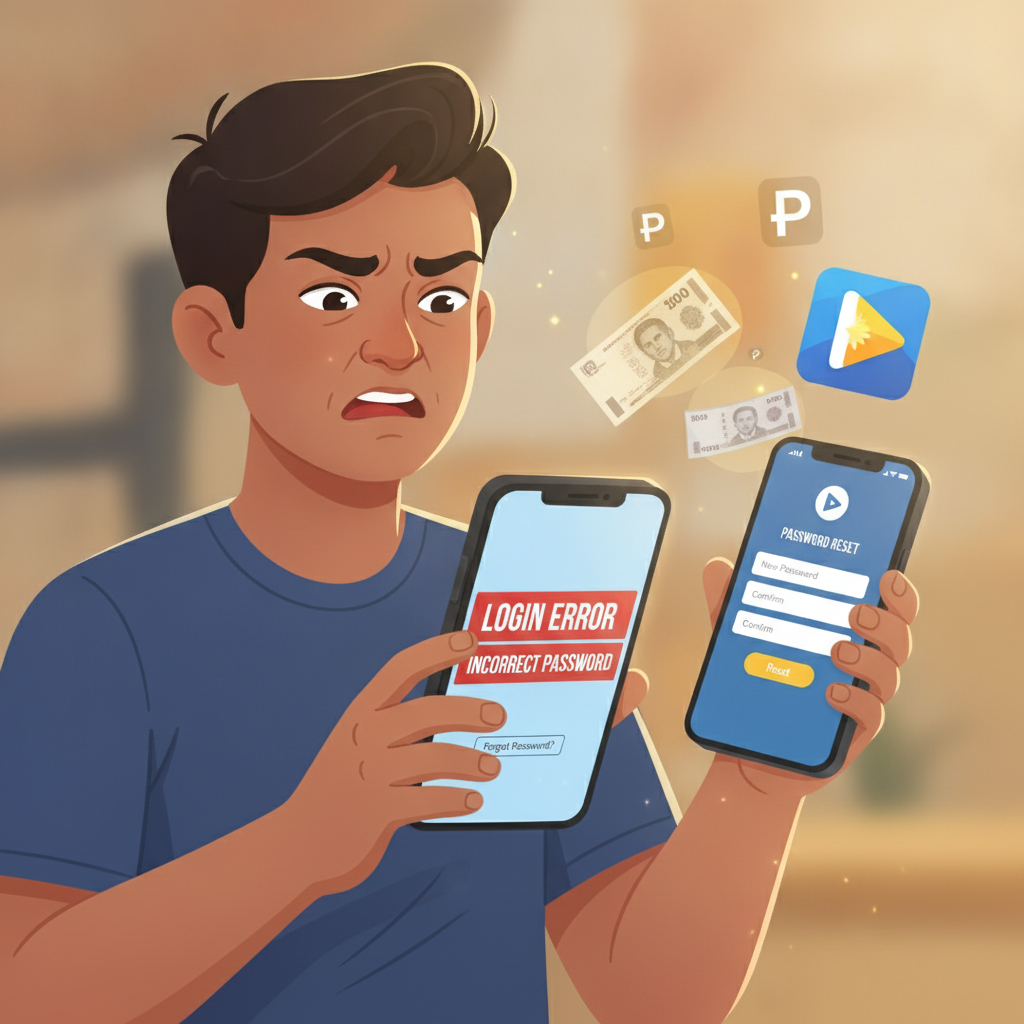
Win City Login Problems: Fix 'Incorrect Password' and Account Locked Errors
Win City players in Metro Manila and across the Philippines occasionally run into login issues when trying to access their accounts on mobile. Whether you see an "incorrect password" message, find your account locked after several failed attempts, or the login screen simply won't load, most problems can be fixed in a few minutes. This guide walks through the most common Win City login errors and exactly how to resolve them on Android devices.
21+ only. Online casino play is restricted to adults. If you find yourself logging in more often than intended or chasing losses, consider setting deposit limits or taking a break.
Common Login Error Messages and What They Mean
When Win City login fails, the platform usually displays one of these error messages:
"Incorrect username or password"
This appears when the credentials you typed don't match Win City's records. It may be a simple typo—PHP keyboard autocorrect on Android sometimes capitalizes letters unexpectedly—or you may be using an old password if you recently changed it.
"Account temporarily locked"
Win City locks accounts after multiple consecutive failed login attempts (typically five within a short window). This security measure protects your balance and personal data from unauthorized access. The lock usually lifts automatically after 15–30 minutes, or you can contact support to unlock it sooner.
"Please verify your account"
You'll see this if Win City's system flags your account for additional ID or phone-number verification. It often appears after a long period of inactivity or when logging in from a new device. Follow the on-screen prompt to upload a valid government ID or confirm the one-time PIN sent to your registered mobile number.
"Session expired" or "Connection timeout"
These messages indicate a network problem or server overload rather than a credential issue. Switch from mobile data to Wi-Fi (or vice versa), close background apps that consume bandwidth, and try again.
Blank screen or infinite loading spinner
A white or frozen screen usually means your browser cache is outdated or conflicting scripts are preventing the login page from rendering. Clearing cache and cookies—covered below—resolves this in most cases.
Resetting Your Password via SMS or Email
If you genuinely can't remember your Win City password or suspect it was changed without your knowledge, a reset takes about two minutes:
- Open the Win City login page on your Android browser or in the app.
- Tap "Forgot Password?" below the password field.
- Choose SMS or email verification. Win City will ask whether you want a one-time PIN sent to your registered mobile number or a reset link sent to your email address. SMS is faster—PINs usually arrive within 30 seconds—but use email if your SIM card is temporarily unavailable.
- Enter the PIN or click the link. For SMS, type the six-digit code into the prompt. For email, open the message in your inbox (check spam if it doesn't appear in two minutes) and tap the "Reset Password" button.
- Create a new password. Win City requires at least eight characters, mixing uppercase, lowercase, and a number. Avoid reusing old passwords or simple patterns like "Password123."
- Log in immediately. Use the new password right away to confirm it works, then store it securely in your phone's password manager or a notes app protected by biometrics.
If the reset PIN or email never arrives:
Check that the mobile number or email on file is still active. If you've changed phone numbers since registering, you'll need to contact Win City support through live chat (accessible from the logged-out homepage) or the official Facebook page. Have your full name, registered email, and a photo of your government ID ready—support will verify your identity before manually resetting the password.
Account Locked After Multiple Failed Attempts: How to Unlock
Win City's automated lock triggers when you or someone else enters the wrong password five times in quick succession. Here's what to do:
Wait 15–30 minutes and try again
The lock expires automatically. Open another app, grab a coffee, then return to the Win City login page and enter your correct credentials.
Request an immediate unlock via live chat
If you need access sooner—for example, to place a time-sensitive sports bet or withdraw funds—tap the chat icon on Win City's homepage. Tell the agent "My account is locked due to failed login attempts" and provide your username or registered email. The support team will ask one or two security questions (date of birth, last deposit amount, or the first six digits of your registered mobile number) and can lift the lock within five minutes.
Secure your account if you didn't cause the lock
Multiple failed attempts you didn't initiate may mean someone is trying to guess your password. Once you regain access, change your password immediately, enable two-factor authentication if Win City offers it, and review recent account activity for unauthorized deposits or bets.
Clearing Cache and Cookies on Android Chrome
Outdated cache files and cookies cause many Win City login problems on Android—blank screens, "session expired" loops, or buttons that don't respond when tapped. Clearing them forces Chrome to fetch a fresh copy of the login page:
- Open Chrome on your Android device.
- Tap the three-dot menu in the top-right corner, then select Settings.
- Go to Privacy and security → Clear browsing data.
- Select a time range. Choose "Last 7 days" if the problem started recently, or "All time" if you've had login issues for weeks.
- Check "Cookies and site data" and "Cached images and files." Leave "Browsing history" unchecked if you want to preserve your history.
- Tap "Clear data" and confirm.
- Close Chrome completely. Swipe up from the bottom of your screen (or tap the recent-apps button), find Chrome in the list of running apps, and swipe it away.
- Reopen Chrome and visit Win City. The login page should load cleanly. Enter your username and password.
Alternative: Use Chrome's Incognito mode as a quick test
Before clearing all cache, open a new Incognito tab (three-dot menu → New Incognito tab) and navigate to Win City. If login succeeds in Incognito, the problem is definitely cached data in your regular session; follow the steps above to clear it. If Incognito also fails, the issue lies elsewhere—likely your password or account status.
For the Win City Android APK:
If you're using the standalone Win City app rather than the mobile website, clear its cache through Android system settings:
- Go to Settings → Apps → Win City (or "See all apps" if it's not listed on the first screen).
- Tap Storage → Clear cache.
- Do not tap "Clear data" unless you're willing to log in fresh—that erases saved credentials.
- Reopen the app and try logging in.
Additional Troubleshooting Tips
Check your internet connection
A weak or unstable connection causes timeouts. Switch between mobile data and Wi-Fi, or move closer to your router if signal strength is low.
Update the Win City app
If you downloaded the Win City APK directly (rather than from an app store), the platform won't auto-update. Visit Win City's official site on your Android browser, download the latest APK, and install it over the old version. Outdated apps sometimes reject valid credentials due to expired security certificates.
Confirm your username
Win City login requires your exact username—not your email address, unless you specifically set your email as the username during registration. Double-check which credential you used when you signed up.
Disable VPN or proxy
Some VPN apps and data-saving proxies interfere with Win City's geo-verification. Temporarily turn off any VPN, then try logging in. If that works, either keep the VPN off for Win City or whitelist the site in your VPN settings.
Contact Win City support
If none of the steps above work, reach out via live chat or the official Facebook page. Provide your username, registered mobile number, and a screenshot of the exact error message. Support can check server-side issues, verify your account status, and escalate technical problems to the IT team.
Staying Safe and Playing Responsibly
Login problems are frustrating, but they also serve as a reminder to secure your account and stay in control:
- Use a strong, unique password and store it in a password manager.
- Never share your Win City credentials with friends or touts offering "sure win" tips.
- Log out after each session on shared or public devices.
- Set deposit and loss limits in your account settings if you find yourself logging in impulsively or chasing losses.
21+ only. Online betting is entertainment, not income. If you're logging in to recover losses or spending more than you planned, consider self-exclusion options or contact the National Council on Problem Gambling in the Philippines for confidential support.
By following these troubleshooting steps—password resets, account unlocks, and cache clearing—you can resolve most Win City login errors in minutes and get back to slots, live dealer tables, or sports betting on PBA and NBA games. Keep your credentials secure, play within your means, and enjoy your session responsibly.